Room AI guide · September 28, 2026
How to Redesign a Room with AI: A Photo-to-Plan Guide
A room redesign is easier to start when you can see more than one direction. AI can help you compare the look of a space from a photo, but the useful part is deciding what you would actually change. This guide walks through that decision in Room AI.
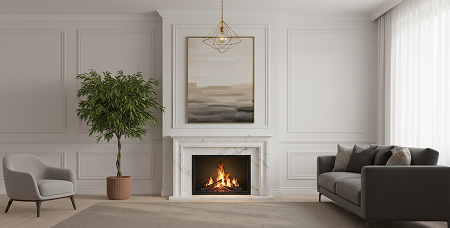
Start with one question about your room
Before generating anything, write down the decision you need to make. Do you want a quieter bedroom, a warmer living room, or a kitchen with a different palette? “Try a minimalist living room with beige tones” gives you a direction to compare. Trying to change every detail at once makes it harder to identify what worked.
Make a short list of things that must stay: a doorway, a large sofa, your dining table, or a window you cannot move. Keep that list beside the generated image. A plausible-looking result is still only a concept, and it may change features you need to preserve.
Prepare a photo that shows the space
Use even lighting and frame enough of the walls and floor to explain the room. Avoid a close-up of one piece of furniture when your goal is the whole room. Remove temporary clutter, hold the phone level, and check that the main corners are visible. See our room photo checklist before uploading.
Use Interior Redesign in Room AI
- Open Create and choose Interior Redesign.
- Select a photo from your library or take one with the camera.
- Choose the room type, a design style, and a palette.
- Generate a concept and review it against your original photo.
- Try a second direction using the same photo so the comparison stays useful.
Room AI includes styles such as Modern, Minimalist, Scandinavian, Traditional, Rustic, and Bohemian. Compare styles that are meaningfully different. For example, Minimalist with white can help you judge simplicity, while Rustic with beige can help you judge warmer textures. Available generation access depends on the app’s current plan and limits.
Evaluate the result before choosing a direction
| Check | Question to ask |
|---|---|
| Layout | Are doors, windows, and walking routes still usable? |
| Scale | Would the suggested furniture fit the measurements? |
| Lighting | Would this palette work in the room’s actual daylight? |
| Budget | Which two or three visible changes are realistic? |
Turn the concept into a decorating shortlist
Save a favorite image, then name the details you like: a lighter wall, a less bulky table, a textured rug, or warmer lamps. Measure first and compare real samples in the room. An AI image cannot confirm paint colors, product availability, structural feasibility, or accurate dimensions. Use it to explain a direction to a designer or contractor, with real measurements alongside it.
For a sleeping space, our AI bedroom design guide shows how to compare comfort, storage, and bedside access. For an empty room, begin with virtual staging instead.